
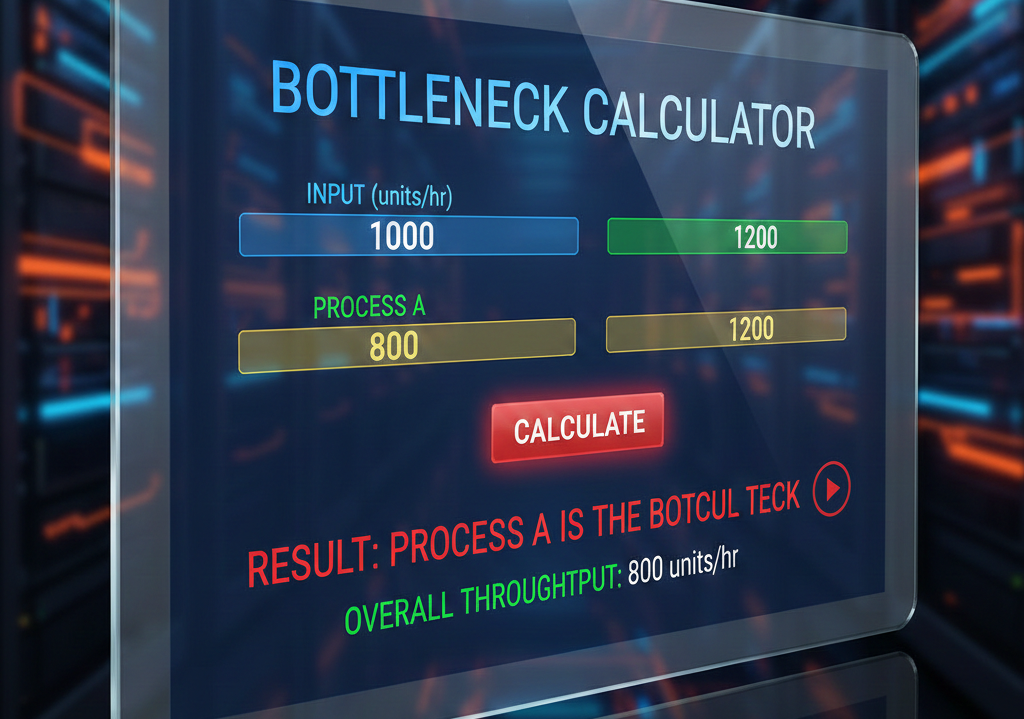
Bottleneck Calculator
If you’ve ever built a PC, upgraded your graphics card, added more RAM, or tried squeezing extra FPS out of your system, there’s one term you’ve definitely come across: bottleneck. It’s one of the most misunderstood concepts in the PC world, yet it affects every computer — whether it’s a gaming rig, a productivity machine, or even a professional workstation.
To help users finally understand and fix this issue, we use a simple but powerful tool: the Bottleneck Calculator.
In this complete 2000-word guide, we’ll break down:
- What a PC bottleneck is
- Why bottlenecks happen
- How a Bottleneck Calculator works
- How accurate these calculators really are
- How to use the tool correctly
- Real examples of bottlenecks in gaming PCs
- How to fix a CPU bottleneck
- How to fix a GPU bottleneck
- How to balance your system for best performance
And yes — all explained in a friendly, human tone.
Let’s get started.
Now Read more about BottleNeck Calculator
What Exactly Is a Bottleneck? (Explained Like You’re Five)
Imagine you’re pouring water from a large bottle into a small glass. No matter how fast you pour, the narrow opening controls the speed.
That narrow part?
That’s your bottleneck.
In your PC, the bottleneck could be:
- Your CPU (processor)
- Your GPU (graphics card)
- Your RAM speed or capacity
- Your storage drive
- Or even your power supply
But 95% of the time, when people talk about bottlenecks, they mean CPU and GPU imbalance.
Why?
Because these two components work together like partners:
- The GPU renders the image
- The CPU gives instructions and processes game logic
If either one is too slow compared to the other, performance drops.
Why Do PC Bottlenecks Happen?
Bottlenecks happen when one part of your hardware is significantly faster than the other. Instead of both working at the same speed, one is left waiting.
Example 1: GPU bottleneck
You pair:
- Intel i9 14900K
- RTX 3060
The CPU is extremely powerful, but the GPU is mid-range.
The GPU becomes the limiting factor.
Example 2: CPU bottleneck
You pair:
- Intel i5 8400
- RTX 4070 Ti
Now the GPU is extremely fast but the CPU can’t keep up.
CPU becomes the bottleneck.
A bottleneck does not mean something is broken.
It simply means your components aren’t perfectly balanced — and that’s totally normal.
What Is the Bottleneck Calculator?
A Bottleneck Calculator is a tool that analyzes your hardware (CPU + GPU + RAM + resolution) and tells you which part is limiting your system’s performance.
Its job is simple:
- You select your CPU
- You select your GPU
- Enter RAM/Resolution
- Click “Calculate”
- The tool tells you if your CPU or GPU is the bottleneck — and by how much
Most calculators display something like:
- CPU bottleneck: 21%
- GPU bottleneck: 8%
- Balanced system: Excellent
These numbers help you understand whether upgrading your GPU or CPU will give better performance.
How Does a Bottleneck Calculator Work?
Many users think these tools measure your computer in real-time.
They don’t.
A Bottleneck Calculator uses:
- Benchmark databases
- Hardware performance scores
- Calculated average FPS values
- Game-specific CPU/GPU scaling data
- Resolution impact formulas
A simplified explanation:
1. It checks CPU score
Examples:
- PassMark CPU Score
- Cinebench score
- Gaming single-core performance
2. It checks GPU score
Examples:
- 3DMark score
- VRAM bandwidth
- CUDA core performance
- Real-world FPS benchmarks
3. It compares performance ratios
If the GPU is 35% stronger than the CPU,
→ CPU bottleneck.
If the CPU is 40% stronger than the GPU,
→ GPU bottleneck.
4. It factors in resolution
Resolution affects bottlenecks dramatically:
- 1080p → more CPU bottleneck
- 1440p → more balanced
- 4K → more GPU bottleneck
Why?
Because higher resolution increases GPU load and decreases CPU dependency.
This is why many gamers upgrade from 1080p to 1440p and suddenly see reduced CPU bottlenecks.
How Accurate Is a Bottleneck Calculator?
Let’s be honest:
A bottleneck calculator is an estimation tool, not a perfect measurement device.
Accuracy mostly depends on:
- Your exact game
- Your background tasks
- Your RAM speed
- Your cooling
- Drivers
- Your motherboard
However, for general guidance, bottleneck calculators are very helpful — especially for beginners choosing hardware.
They’re not perfect, but they’re far better than blind guessing.
Who Should Use a Bottleneck Calculator?
This tool is ideal for:
✔ Gamers
Choosing the right graphics card or CPU.
✔ PC Builders
Avoiding mismatched hardware.
✔ Laptop Buyers
Understanding why a laptop with a strong GPU but weak CPU performs poorly.
✔ Content Creators
Ensuring editing software runs smoothly.
✔ Anyone Upgrading Slowly
If you’re upgrading one part at a time, this tool helps you avoid wasting money.
How to Use a Bottleneck Calculator (Step-by-Step)
Using the tool is extremely easy:
Step 1: Select Your CPU
Choose the processor installed in your PC:
- Intel i3/i5/i7/i9
- Ryzen 3/5/7/9
- Older generations
- Laptop CPUs
Step 2: Select Your GPU
Choose your graphics card:
- NVIDIA RTX/GTX
- AMD RX series
- Laptop GPUs
Step 3: Enter RAM
More RAM usually reduces bottlenecks, but speed matters too.
Example:
- 8GB slow RAM → more bottleneck
- 16GB fast RAM → less bottleneck
Step 4: Select your Resolution
Choose:
- 720p
- 1080p
- 1440p
- 4K
This is important because resolution changes bottleneck behavior dramatically.
Step 5: Click “Calculate”
The tool will show:
- Bottleneck percentage
- Which component is the bottleneck
- How much performance you’re losing
- Upgrade recommendations
Real-World Bottleneck Examples
Let’s break down real PC scenarios using a bottleneck calculator logic.
Scenario 1: CPU Bottleneck
CPU: Intel i5-9400F
GPU: RTX 3080
Result: 37% CPU bottleneck
Meaning: The GPU is waiting for the CPU.
You’ll see:
- Low FPS in CPU-heavy games
- GPU usage stuck at 60–70%
- Stuttering in open-world titles
Scenario 2: GPU Bottleneck
CPU: Ryzen 7 5800X
GPU: GTX 1650
Result: 44% GPU bottleneck
Meaning: The CPU is too strong for the weak GPU.
You’ll see:
- GPU at 100% load
- CPU at 15–25% load
- Low FPS in all modern games
Scenario 3: Perfectly Balanced
CPU: Ryzen 5 5600
GPU: RTX 3060
Result: 3% bottleneck
Meaning: Your components match beautifully.
This is what most builders aim for.
How to Fix a CPU Bottleneck
If your bottleneck calculator shows a CPU bottleneck, try these fixes:
✔ 1. Lower the resolution? NO.
Lowering resolution increases CPU load.
It actually makes the bottleneck worse.
✔ 2. Increase resolution
1440p and 4K shift load toward the GPU, reducing CPU bottlenecks.
✔ 3. Close background apps
Chrome and Discord love eating CPU.
✔ 4. Upgrade CPU
Best long-term fix.
✔ 5. Enable XMP/DOCP
Faster RAM boosts CPU performance.
✔ 6. Overclock CPU
Gives a free FPS boost if done safely.
✔ 7. Keep drivers updated
Outdated chipset drivers = CPU stutter.
How to Fix a GPU Bottleneck
If your GPU is the bottleneck:
✔ 1. Lower your graphics settings
Reduce graphics quality.
✔ 2. Lower resolution
1080p → higher FPS
1440p → lower load on GPU
✔ 3. Upgrade GPU
The obvious but best fix.
✔ 4. Use DLSS / FSR
Huge FPS gains in supported games.
✔ 5. Clean your GPU
High temps = throttling = low performance.
Common Myths About Bottlenecks (Busted)
❌ Myth 1: “Any bottleneck is bad.”
Not true.
Every PC has a bottleneck.
Balance is what matters.
❌ Myth 2: “10% bottleneck means your PC is unusable.”
A 10–20% bottleneck is very normal.
❌ Myth 3: “CPU bottleneck means I must upgrade.”
Not always.
Changing resolution or settings can help.
❌ Myth 4: “Bottleneck calculators are fake.”
They’re estimations — not scams.
Why the Bottleneck Calculator Is So Useful
This tool helps you:
- Choose the right GPU for your budget
- Avoid buying a CPU that’s too weak or too powerful
- Plan your upgrades smartly
- Understand performance differences
- Optimize your system for gaming or productivity
- Save money by avoiding bad component pairings
It’s especially helpful for beginners who don’t fully understand hardware comparisons.
When Should You Worry About Bottlenecks?
You should only worry if the calculator shows:
- 30%+ CPU bottleneck
- 40%+ GPU bottleneck
- Constant stutters in games
- GPU usage stuck below 80%
- CPU maxed at 100%
- Low FPS with high-end hardware
Anything under 20% is perfectly normal.
The Future of Bottleneck Calculators
As hardware becomes more diverse, future calculators may include:
- AI-powered performance predictions
- Real-time in-browser benchmarking
- Game-specific bottleneck calculations
- Thermal throttling detection
- RAM latency and speed analysis
But even the current version is incredibly useful.
Final Thoughts: Should You Use a Bottleneck Calculator? Absolutely.
Whether you’re:
- Building a new PC
- Upgrading from an older GPU
- Trying to understand poor FPS
- Balancing hardware for gaming or editing
- Or simply curious about system performance
The Bottleneck Calculator is one of the simplest and smartest tools you can use.
It helps you avoid bad hardware combinations, explains performance issues, and gives you clear direction on what to upgrade next.
Think of it as a PC doctor — checking your system’s health and finding the weak point.